
Manually entering receipts and invoices into QuickBooks can be time-consuming, especially for businesses processing dozens of transactions every week. Copying financial data from paper receipts or PDF invoices increases the risk of typing errors and duplicate work.
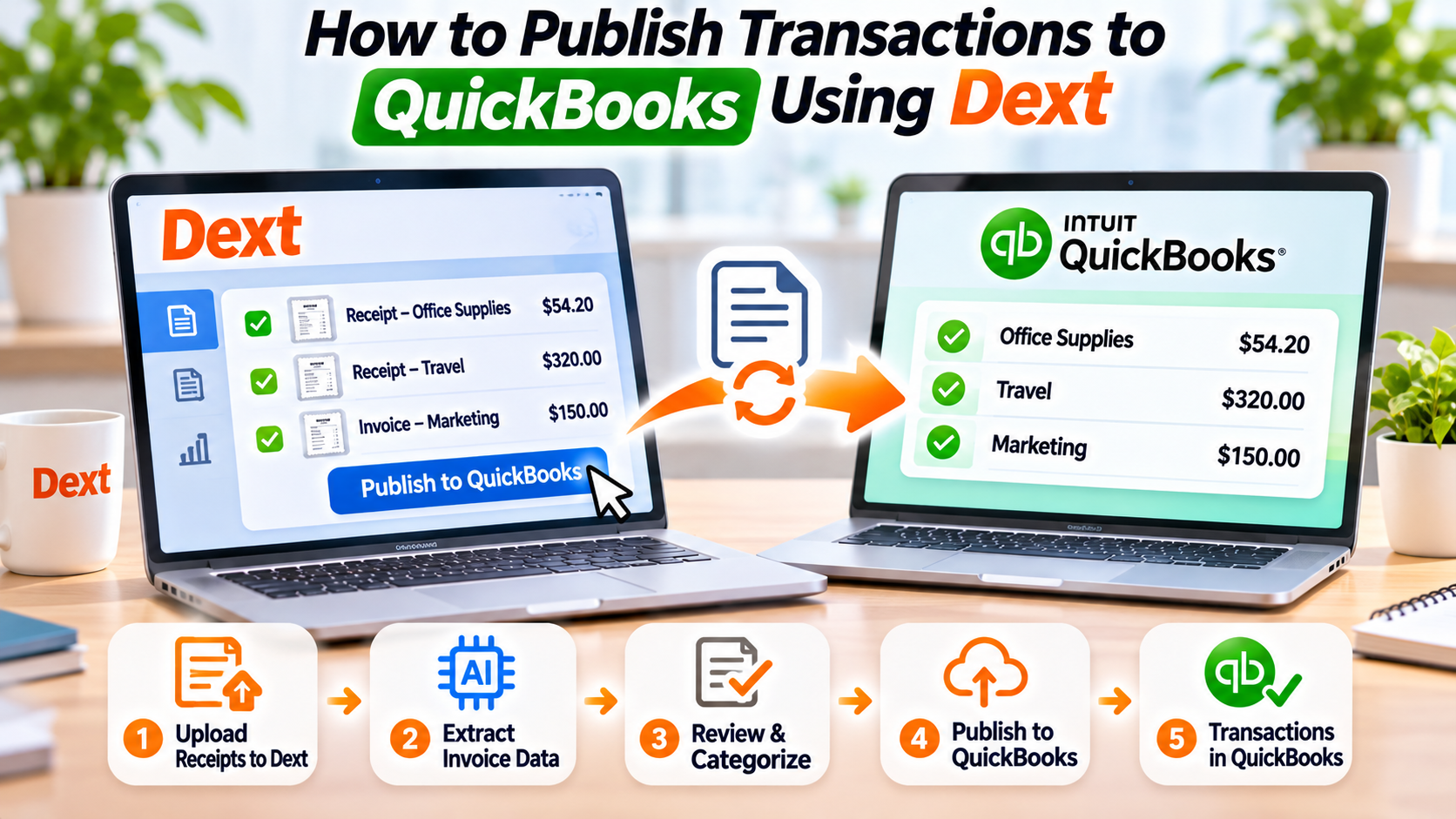
Dext eliminates these challenges by allowing users to publish verified transactions directly to QuickBooks Online. Once your accounts are connected, financial documents can move seamlessly from receipt capture to your bookkeeping system in just a few clicks.
This guide explains how to publish transactions to QuickBooks using Dext.
Step 1: Connect Dext to QuickBooks Online
Before publishing transactions, you must connect your QuickBooks Online account.
To do this:
- Sign in to your Dext account.
- Navigate to Connections or Integrations.
- Select QuickBooks Online.
- Sign in with your Intuit account.
- Authorize Dext to access your QuickBooks company.
Once connected, Dext automatically syncs important accounting information such as chart of accounts, suppliers, tax rates, and expense categories.
Step 2: Upload Your Financial Documents
Import your receipts or invoices using any of Dext's supported methods:
- Mobile app
- Email forwarding
- Desktop upload
- Drag-and-drop
- PDF or image files
After uploading, Dext's AI immediately begins extracting financial information.
Step 3: Review AI-Extracted Data
Dext uses Artificial Intelligence (AI) and Optical Character Recognition (OCR) to identify information including:
- Supplier name
- Purchase date
- Invoice number
- Total amount
- Tax or VAT
- Currency
Before publishing, verify that all extracted information is accurate.
If necessary, edit any incorrect fields directly within Dext.
Step 4: Assign the Correct Accounting Details
Next, categorize the transaction using your QuickBooks accounting structure.
Select the appropriate:
- Expense category
- General Ledger (GL) account
- Supplier
- Tax code
- Payment account
- Department or class (if applicable)
Because Dext synchronizes with QuickBooks, these options are automatically available.
Step 5: Approve the Transaction
Many businesses use approval workflows before transactions are posted.
A typical workflow may include:
Employee
↓
Manager
↓
Finance Team
↓
Accountant
↓
QuickBooks Online
This process improves financial control while ensuring transactions are reviewed before publication.
Step 6: Publish to QuickBooks
After reviewing and approving the transaction, click Publish.
Dext sends the verified financial data directly into QuickBooks Online, including:
- Expense details
- Supplier information
- Tax values
- Attached receipt or invoice image
- Accounting category
The transaction now appears in QuickBooks without requiring manual re-entry.
Benefits of Publishing Through Dext
Using Dext together with QuickBooks offers several advantages:
- Eliminate duplicate data entry
- Improve bookkeeping accuracy
- Reduce manual processing time
- Automatically attach supporting documents
- Speed up month-end reconciliation
- Improve collaboration between business owners and accountants
- Maintain organized digital financial records
For businesses processing hundreds of transactions each month, these time savings can be significant.
Best Practices
To maximize efficiency:
- Upload receipts immediately after purchases.
- Review AI-extracted information before publishing.
- Keep supplier records updated.
- Use consistent expense categories.
- Reconcile transactions regularly in QuickBooks.
- Allow your accountant to review transactions when appropriate.
Following these practices helps maintain accurate financial records while minimizing bookkeeping errors.
Final Thoughts
Publishing transactions from Dext to QuickBooks Online is one of the easiest ways to automate bookkeeping. Instead of entering receipts and invoices manually, businesses can capture documents, let AI extract the data, review the information, and publish everything directly into QuickBooks.
For small businesses, accountants, and finance teams, this streamlined workflow saves time, reduces errors, and improves overall financial efficiency.
Frequently Asked Questions
Can Dext publish directly to QuickBooks Online?
Yes. After connecting your QuickBooks Online account, Dext can publish approved transactions directly into your bookkeeping system.
Does Dext upload receipt images to QuickBooks?
Yes. Dext can attach the original receipt or invoice image to the corresponding QuickBooks transaction, making document retrieval much easier.
Do I need to review transactions before publishing?
Yes. Although Dext's AI is highly accurate, reviewing transactions before publishing helps ensure complete bookkeeping accuracy.
Is Dext suitable for businesses with high transaction volumes?
Absolutely. Businesses processing many receipts and invoices each month benefit greatly from Dext's automation and QuickBooks integration.







Write Your Review
No reviews yet. Be the first to share your experience!