
Business expenses happen everywhere—during client meetings, business trips, office supply purchases, and online shopping. Waiting until the end of the month to organize paper receipts often leads to lost documents and unnecessary bookkeeping work.
The Dext mobile app makes receipt management simple. With just a few taps, you can photograph a receipt, let AI extract the financial data, and send it directly to your accounting workflow.
Here's how to upload receipts using the Dext mobile app.
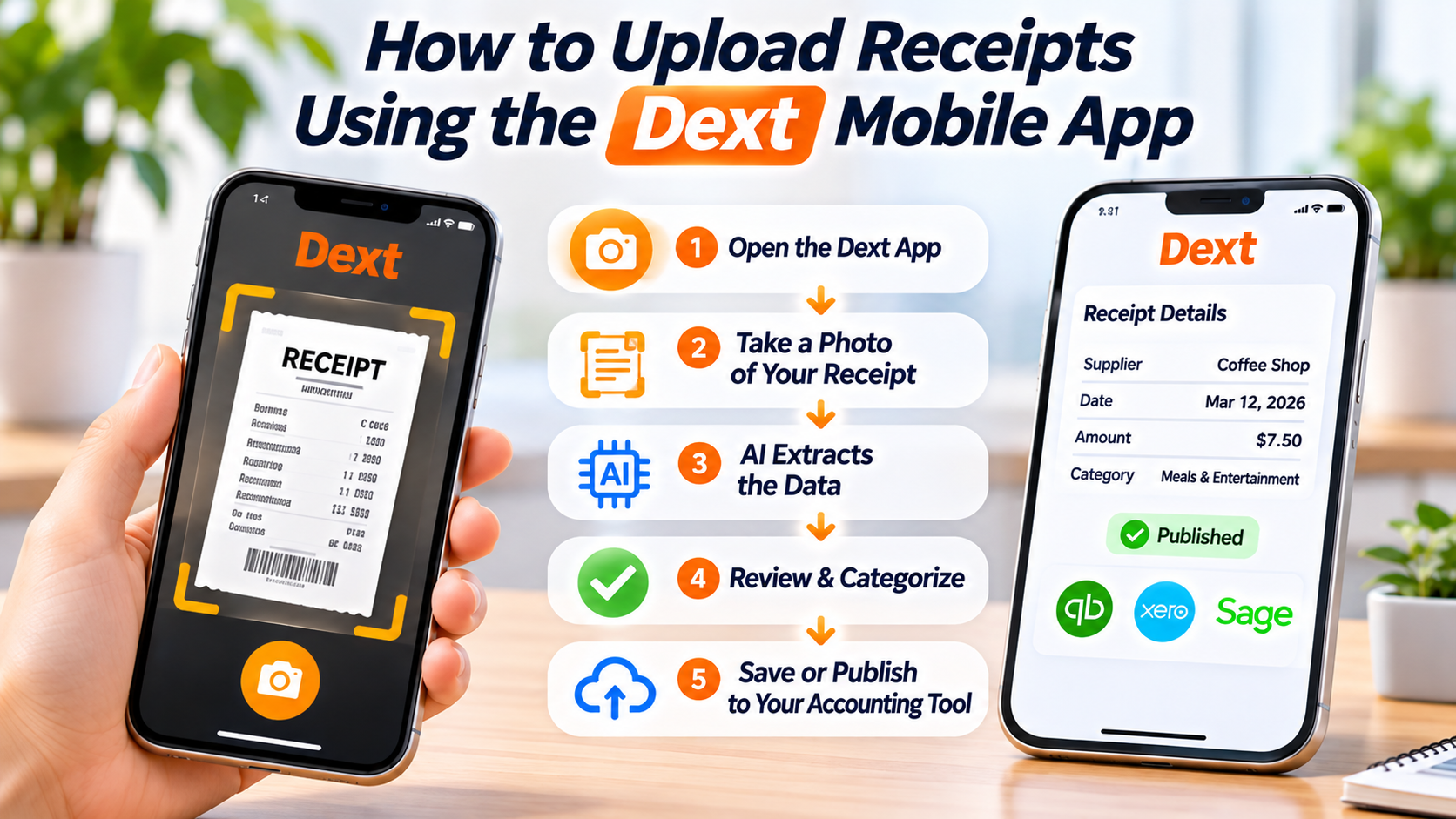
Step 1: Download and Sign In
If you haven't already, download the Dext mobile app from your device's app store.
After installation:
- Sign in with your Dext account.
- Select the correct business profile (if you manage multiple accounts).
- Allow camera access when prompted.
You're now ready to start capturing receipts.
Step 2: Open the Receipt Capture Feature
From the app's home screen, tap the Capture or Add Receipt button.
The camera will open automatically, allowing you to photograph your receipt.
You can also upload an existing image from your phone's photo library if the receipt was previously saved.
Step 3: Take a Clear Photo
For the best AI recognition, ensure the receipt is:
- Fully visible
- Flat on a surface
- Well-lit
- In focus
- Not folded or wrinkled
Include the entire receipt, including the merchant name, date, and total amount.
A high-quality image improves OCR accuracy and reduces the need for manual corrections.
Step 4: Let AI Extract the Data
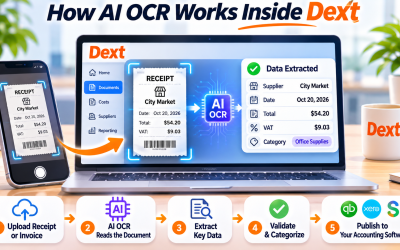
Once the image is uploaded, Dext automatically processes it using Artificial Intelligence (AI) and Optical Character Recognition (OCR).
Within seconds, the app extracts key information, including:
- Merchant name
- Purchase date
- Total amount
- Tax or VAT
- Currency
- Payment details
This eliminates the need to type receipt information manually.
Step 5: Review and Edit (If Needed)
Although Dext's AI is highly accurate, it's always a good idea to review the extracted data before submitting it.
Verify:
- Supplier name
- Expense amount
- Date
- Tax information
- Currency
- Receipt image
If anything is incorrect, you can edit the information directly in the app.
Step 6: Assign an Expense Category
Before saving the receipt, Dext may recommend an expense category based on your bookkeeping history.
Examples include:
- Travel
- Office Supplies
- Software
- Meals and Entertainment
- Marketing
- Utilities
Selecting the correct category helps maintain accurate financial records.
Step 7: Publish or Save
Once everything looks correct, save the receipt or publish it directly to your connected accounting software.
Dext integrates with platforms such as:
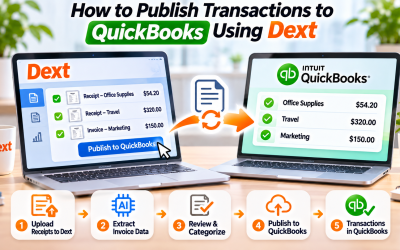
- QuickBooks Online
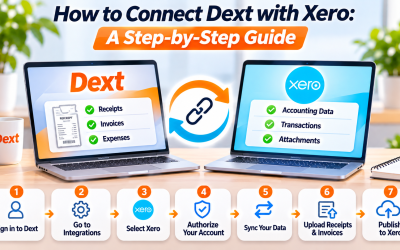
- Xero
- Sage
- FreeAgent
- Zoho Books
Your expense is now ready for bookkeeping without duplicate data entry.
Tips for Better Receipt Management
To maximize efficiency:
- Upload receipts immediately after every purchase.
- Keep receipts flat and easy to read.
- Use consistent expense categories.
- Review AI-extracted data before publishing.
- Encourage employees to upload receipts in real time.
These simple habits reduce missing receipts and improve bookkeeping accuracy.
Final Thoughts
The Dext mobile app makes receipt management fast, convenient, and accurate. Instead of collecting paper receipts or manually entering expense data, users can capture receipts on the go and let AI handle the rest.
Whether you're a freelancer, small business owner, or accountant, using the Dext mobile app helps streamline bookkeeping, reduce administrative work, and keep your financial records organized.
Frequently Asked Questions
Can I upload receipts from my phone?
Yes. The Dext mobile app allows you to photograph receipts or upload existing images directly from your smartphone.
Does Dext automatically read receipt information?
Yes. Dext uses AI-powered OCR technology to extract merchant names, dates, totals, taxes, and other financial information automatically.
Can I edit the extracted data?
Absolutely. You can review and edit receipt details before saving or publishing the transaction.
Does the Dext mobile app work with accounting software?
Yes. The app integrates with QuickBooks Online, Xero, Sage, FreeAgent, Zoho Books, and other supported accounting platforms, allowing receipts to sync seamlessly into your bookkeeping workflow.






Write Your Review
No reviews yet. Be the first to share your experience!