
Creating professional presentations no longer requires hours of writing, designing, and formatting slides. With Gamma.app, you can transform a simple idea into a polished presentation in just a few minutes using artificial intelligence.
Whether you're preparing a business proposal, sales pitch, classroom lesson, or marketing report, Gamma simplifies the entire process. This beginner-friendly guide will walk you through every step—from creating your account to sharing your first AI-generated presentation.

Step 1: Create Your Gamma Account
Getting started with Gamma is quick and straightforward.
Visit the Gamma website and sign up using one of the following methods:
- Google account
- Microsoft account
- Email address
Once registered, you'll enter your personal workspace, where you can create presentations, documents, and webpages.
New users receive free AI credits, allowing them to explore the platform before upgrading to a paid subscription.
Step 2: Start a New AI Presentation
From the dashboard, click Create New and select Presentation.
Gamma offers several ways to begin:
- Generate with AI
- Import an existing document
- Start from a template
- Create from a blank page
For beginners, the Generate with AI option is the fastest and easiest.
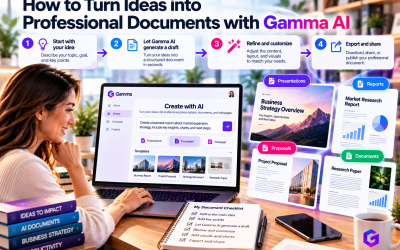
Step 3: Describe Your Presentation
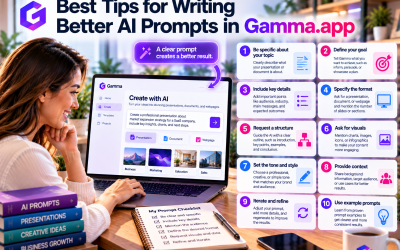
The quality of your presentation depends largely on the prompt you provide.
Instead of entering a single topic, include additional context such as:
- Your objective
- Target audience
- Presentation style
- Number of slides
- Preferred tone
For example:
Create a 10-slide presentation explaining how artificial intelligence improves customer service for small businesses. Use a modern, professional style with concise bullet points and practical examples.
The more detailed your prompt, the better the AI can understand your expectations.
Step 4: Review the AI-Generated Outline
Before generating the full presentation, Gamma typically creates an outline.
Review the suggested sections and make adjustments if necessary. You can:
- Add new topics
- Remove unnecessary sections
- Rearrange slide order
- Rename headings
Spending a few minutes refining the outline helps ensure the final presentation matches your goals.
Step 5: Generate Your Presentation
Once you're satisfied with the outline, let Gamma generate the complete presentation.
Within seconds, the platform automatically creates:
- Professional slide layouts
- Written content
- Headings and subheadings
- Icons and visual elements
- Images and illustrations (where appropriate)
- Consistent fonts and color schemes
Instead of designing every slide manually, you receive a polished first draft ready for review.
Step 6: Customize Your Slides
Although Gamma's AI creates an impressive presentation automatically, you can still personalize every section.
You can easily:
- Edit text
- Replace images
- Add charts or videos
- Rearrange content blocks
- Change themes and colors
- Modify typography
Gamma's drag-and-drop interface makes customization simple, even for users with no design experience.
Step 7: Use AI to Improve Your Content
One of Gamma's most powerful features is conversational editing.
Instead of rewriting content manually, simply ask the AI to make changes.
Examples include:
- “Rewrite this slide in a more professional tone.”
- “Summarize this section.”
- “Add three key statistics.”
- “Create a stronger conclusion.”
- “Explain this concept more clearly.”
This AI-assisted workflow dramatically reduces editing time while maintaining consistency throughout the presentation.
Step 8: Collaborate with Your Team
Gamma supports real-time collaboration, making it ideal for teams.
You can:
- Invite teammates
- Leave comments
- Edit simultaneously
- Share projects through links
- Collect feedback before presenting
This collaborative environment eliminates the need to email multiple presentation versions back and forth.
Step 9: Present or Share
When your presentation is complete, Gamma offers several sharing options.
You can:
- Present directly from your browser
- Share a public link
- Export to PDF
- Export to PowerPoint
- Embed your presentation on a website
These flexible sharing options make Gamma suitable for business meetings, online courses, client presentations, and conferences.
Tips for Better AI Presentations
To achieve the best results with Gamma:
- Write clear and detailed prompts.
- Define your audience before generating content.
- Review and refine the AI-generated outline.
- Keep slides concise and focused.
- Use visuals to support your message rather than overwhelm it.
- Let AI handle the first draft, then add your personal insights and expertise.
Combining AI efficiency with human creativity produces the strongest presentations.
Final Thoughts
Gamma.app makes presentation creation faster, easier, and more accessible than ever before. From account setup to delivering your finished presentation, the platform guides users through a streamlined workflow powered by artificial intelligence.
Its combination of AI-generated content, intelligent design, real-time collaboration, and flexible editing allows beginners to produce presentations that look professional without investing hours in formatting and design.
If you're searching for a modern alternative to traditional presentation software, Gamma.app is an excellent place to start. With just a simple prompt, you can create engaging presentations that are ready to impress clients, colleagues, investors, or students in a fraction of the time.








Write Your Review
No reviews yet. Be the first to share your experience!