
A Customer Relationship Management (CRM) system is the central hub of every successful sales organization. It stores customer information, tracks interactions, manages opportunities, and provides valuable insights into the sales pipeline. However, a CRM is only as useful as the quality of the data inside it.
Many sales teams struggle with outdated contacts, duplicate records, and time-consuming manual data entry. Switching between prospecting tools and CRM platforms also slows productivity and increases the risk of errors.
Apollo.io addresses these challenges by integrating directly with leading CRM platforms such as HubSpot and Salesforce. With automatic synchronization, sales teams can move qualified prospects into their CRM, keep contact records updated, and streamline their entire sales workflow.
In this guide, you'll learn why CRM integration matters, how Apollo.io works with HubSpot and Salesforce, and the best practices for maintaining accurate sales data.
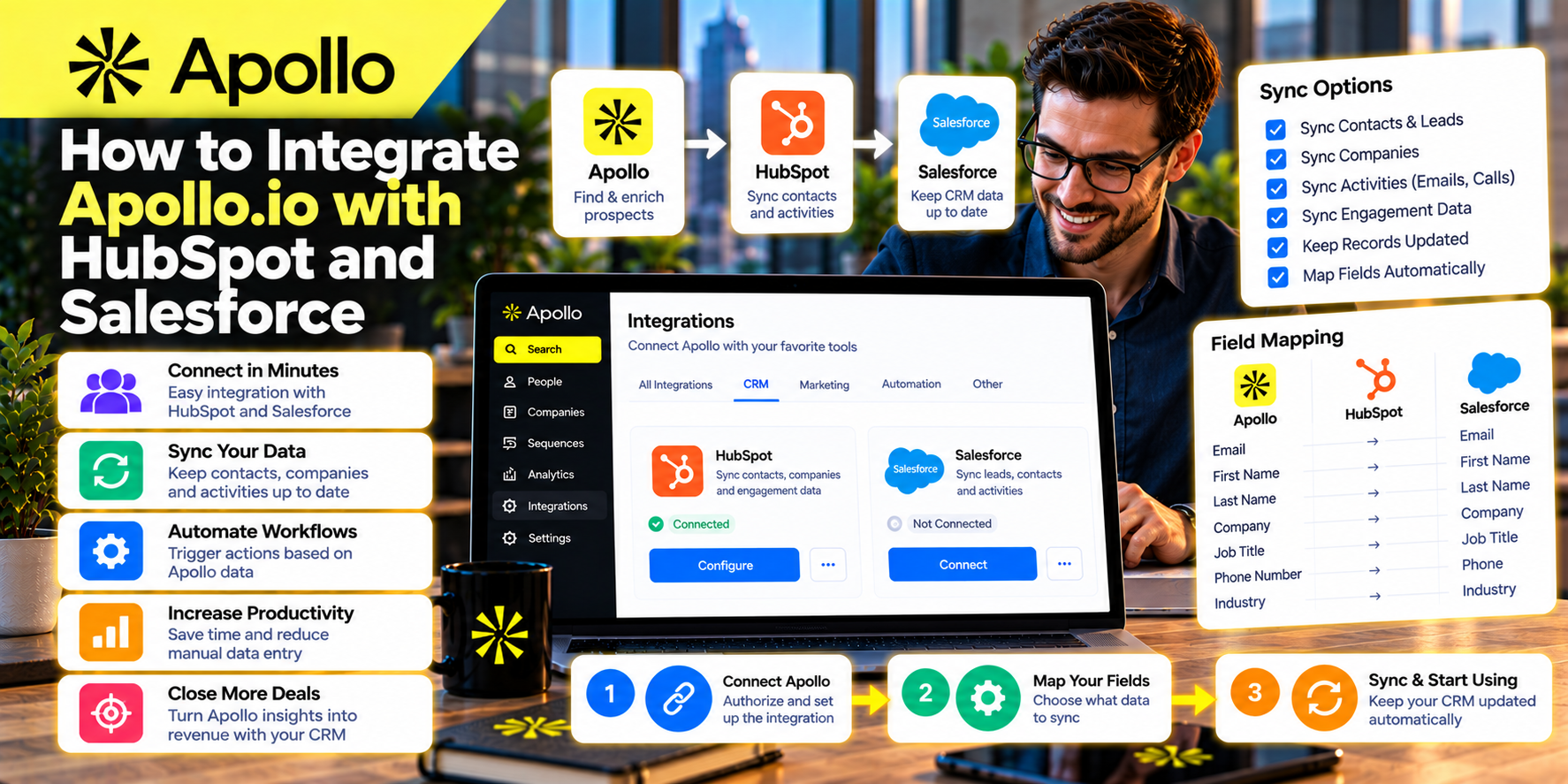
Why CRM Integration Is Important
Sales representatives use multiple tools every day, including prospecting platforms, email software, meeting schedulers, and analytics dashboards.
Without integration, this often results in:
- Manual data entry
- Duplicate contacts
- Inconsistent records
- Missed follow-ups
- Lost sales opportunities
Connecting Apollo.io with your CRM creates a centralized workflow where prospecting and pipeline management work together.
Instead of copying information between systems, your sales team can focus on building relationships and closing deals.
Benefits of Connecting Apollo.io to Your CRM
Integrating Apollo.io with HubSpot or Salesforce provides several advantages.
Save Time
Automatically synchronize contacts instead of entering data manually.
Improve Data Accuracy
Keep company and contact information updated across both platforms.
Reduce Duplicate Records
Prevent multiple versions of the same contact from appearing in your CRM.
Increase Sales Productivity
Move qualified prospects directly into your sales pipeline.
Improve Team Collaboration
Ensure marketing, sales, and customer success teams work from the same customer data.
A connected CRM reduces administrative work while improving operational efficiency.
Integrating Apollo.io with HubSpot
HubSpot is one of the most popular CRM platforms for startups, SaaS companies, and growing businesses.
Apollo.io integrates with HubSpot to simplify prospect management.
A typical integration workflow includes:
Step 1: Connect Your Accounts
Authorize Apollo.io to access your HubSpot workspace through the integration settings.
Step 2: Configure Sync Preferences
Choose which information should sync, including:
- Contacts
- Companies
- Email addresses
- Phone numbers
- Job titles
- Notes
- Activities
Step 3: Define Sync Rules
Decide how new contacts should be handled.
For example:
- Create new contacts automatically
- Update existing records
- Skip duplicates
- Sync only selected prospect lists
Step 4: Test the Integration
Before importing large prospect lists, verify that data appears correctly inside HubSpot.
Testing helps identify configuration issues early.
Integrating Apollo.io with Salesforce
Salesforce is widely used by mid-sized and enterprise organizations with complex sales processes.
Apollo.io supports Salesforce integration to improve data quality and streamline prospecting.
The general workflow is similar:
Connect Apollo.io
Authenticate your Salesforce account securely.
Map CRM Fields
Match Apollo.io fields with Salesforce objects, including:
- Leads
- Accounts
- Contacts
- Opportunities
Proper field mapping ensures data is stored consistently.
Configure Synchronization
Select how Apollo.io should interact with Salesforce records.
Options may include:
- Create new leads
- Update existing contacts
- Prevent duplicate entries
- Sync specific teams or campaigns
Verify Data
After configuration, confirm that contacts and companies appear correctly in Salesforce.
What Information Can Be Synchronized?
Depending on your configuration, Apollo.io can synchronize information such as:
- Contact names
- Company names
- Email addresses
- Phone numbers
- Job titles
- Departments
- Company websites
- Industry
- Employee count
- Notes
- Sales activities
Keeping these fields synchronized improves reporting and ensures every team member works with accurate information.
Build a Better Sales Workflow
A connected CRM supports a more efficient sales process.
For example:
- Search for companies in Apollo.io.
- Apply advanced filters.
- Save qualified prospects.
- Review company insights.
- Add prospects to an email sequence.
- Sync contacts with HubSpot or Salesforce.
- Track opportunities in the CRM.
- Monitor deal progress.
This workflow eliminates repetitive manual tasks while maintaining complete visibility across the sales pipeline.
Best Practices for CRM Integration
To maximize the value of Apollo.io integrations:
Define Clear Ownership
Assign responsibility for CRM data quality.
Review Field Mapping
Ensure every important field transfers correctly.
Remove Duplicate Contacts
Regularly audit your CRM to maintain clean records.
Segment Prospects
Organize contacts by industry, campaign, or sales stage before syncing.
Test Before Large Imports
Always verify synchronization using a small sample first.
Monitor Sync Activity
Review integration logs periodically to identify errors or inconsistencies.
These practices help maintain a reliable CRM that supports long-term sales growth.
Common Integration Mistakes
Many organizations experience problems because they overlook simple configuration issues.
Avoid these common mistakes:
Importing Every Prospect
Only synchronize qualified leads.
Ignoring Duplicate Rules
Duplicate contacts create confusion and reduce CRM accuracy.
Poor Field Mapping
Incorrect mappings may result in missing or inconsistent information.
Lack of Data Governance
Establish clear standards for updating customer records.
Never Reviewing Sync Results
Regular audits help ensure data remains accurate over time.
HubSpot vs Salesforce for Apollo.io Users
Both platforms integrate well with Apollo.io, but they often serve different types of organizations.
HubSpot
Best suited for:
- Startups
- Small businesses
- Growing SaaS companies
- Marketing-focused teams
Strengths include:
- User-friendly interface
- Fast implementation
- Integrated marketing tools
- Simpler administration
Salesforce
Best suited for:
- Enterprise organizations
- Large sales teams
- Complex sales processes
- Global businesses
Strengths include:
- Extensive customization
- Advanced reporting
- Enterprise security
- Highly scalable architecture
The right choice depends on your company's size, sales process, and operational requirements.
Why CRM Integration Improves Sales Performance
Sales representatives perform best when they spend more time selling and less time managing data.
Apollo.io integration supports this goal by:
- Eliminating repetitive tasks
- Improving contact accuracy
- Keeping prospect information current
- Supporting collaboration
- Accelerating pipeline management
A well-integrated workflow enables teams to respond faster, personalize outreach, and maintain stronger customer relationships.
Final Thoughts
Integrating Apollo.io with HubSpot or Salesforce transforms disconnected sales activities into a unified workflow. Instead of manually transferring prospect information between systems, sales teams can automatically synchronize qualified contacts, maintain accurate CRM records, and focus on building relationships with potential customers.
Whether you're a startup using HubSpot or an enterprise organization relying on Salesforce, Apollo.io provides the integration capabilities needed to improve data quality, streamline prospecting, and create a more efficient sales process.
The result is a cleaner CRM, more productive sales representatives, and a stronger pipeline built on reliable business information.
Key Takeaway: Connecting Apollo.io with HubSpot or Salesforce eliminates manual data entry, improves CRM accuracy, and creates a seamless sales workflow that helps businesses generate more qualified opportunities while saving valuable time.










Write Your Review
No reviews yet. Be the first to share your experience!